
HP
HP Inc.Productivity
4.236.19K Reviews
- Version
- 26.4.2.6958
- Installs
- 100.00M
- Age Rating
- Everyone
Screenshots
Our Review of HP
 Analysis by Appyee
I reach for an HP printer app most often when a document is sitting on my phone and I need a paper copy without turning on a computer. That simple job is where HP earns its place: it brings printer setup, everyday print and scan tasks, and support into a mobile workflow. HP is a free productivity app from HP Inc., and its appeal is less about replacing a full desktop setup than making a nearby HP printer easier to use from the device I already have in hand.
A mobile control point for printing
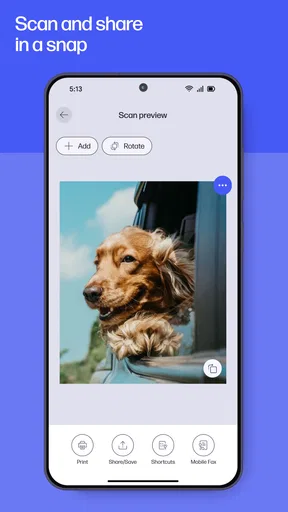
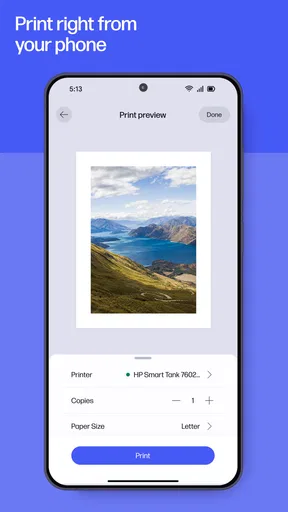
The useful idea here is that the phone becomes a practical control point for an HP printer. Rather than moving a file to a laptop just to print it, I can start with content on my phone, choose a printer, and handle the job there. The app also puts scanning alongside printing, which matters when I need to move a paper document in the other direction—from the printer into a file I can keep or share.
That combination suits ordinary household and small-work tasks: printing a form, making a copy of a receipt, or sending a scan to someone who needs it. It is not a reason to install an app if I never print, but it can remove several small annoyances when the printer is part of my routine. The key is having a compatible HP printer and a working connection between it and the phone.
What setup feels like in practice
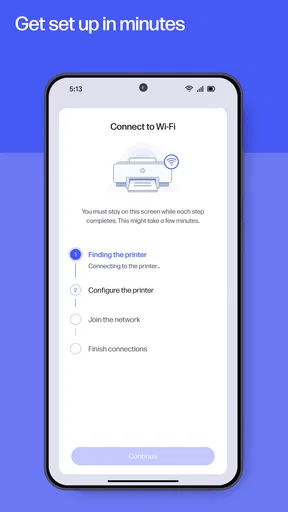
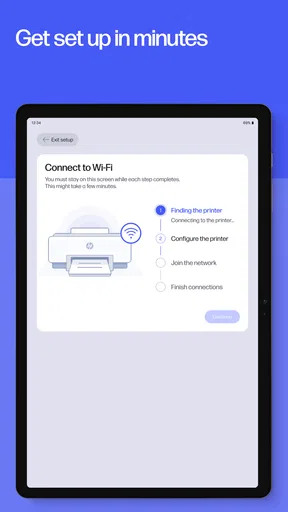
On first use, the main job is connecting the app to the printer. The guided flow is approachable, especially if printer networking is not something I want to troubleshoot from scratch. Once the connection is in place, I can use the phone as a convenient starting point for print and scan tasks instead of hunting for a cable or opening a computer.
There is a practical distinction between an easy setup and a trouble-free connection forever. A printer may not appear promptly if the network is having a bad day, and getting back on track can take more patience than the initial guided steps suggest. I would try the basic checks first—make sure the phone and printer are reachable on the intended network, then reopen the app—before assuming the printer itself is broken.
The everyday workflow it handles well
For a realistic example, imagine I receive a form on my phone in the morning and need to sign a paper copy before leaving. I can use the app to send the document to the printer without first forwarding it to myself or booting up a computer. Later, if I need a digital copy of a signed page, the scan option gives me a route back to a file I can share. That print-and-scan loop is the strongest reason I would keep the app installed.
It is also useful for less urgent jobs. I can print a page for a household task, or send a photo to a printer when a physical copy is more convenient than viewing it on a screen. Mobile Fax, Smart Tasks, and ink or toner level checks add functions beyond basic printing, although their usefulness depends on what I actually do and on the printer and services involved. I would treat them as helpful extras rather than reasons on their own to choose the app.
Where it sits beside other options
Compared with opening a document on a computer and printing from there, the app is more convenient when the file is already on my phone and the job is straightforward. Compared with a general-purpose scanning app, its advantage is the direct relationship with an HP printer: printing and scanning can sit in one place instead of being split across separate tools. A computer remains the better choice for detailed page layout, complex print settings, or work that is easier to review on a large screen.
I would not choose it as a universal printer app for a mixed-brand home. Its central value is tied to HP hardware, so someone who uses printers from several manufacturers may prefer each maker’s own app or a workflow built around a computer. Likewise, if I only need to scan papers and never print, a dedicated scanning tool may be a simpler fit.
Who gets the most from it
HP Smart makes most sense for someone who owns an HP printer and regularly handles documents or photos on a phone. It is particularly handy for households where different people need occasional printing, or for someone who wants basic scanning without setting up a separate desktop routine. It is free, rated for Everyone, and has an average rating of 4.2 from around 872,000 ratings, with more than 100 million installs. Those figures show broad use, but my recommendation still depends on whether the app matches your printer and habits.
If you rarely print, or if your printer is not an HP model, you are unlikely to gain much from installing it. If your work depends on precise formatting, bulk jobs, or advanced document handling, I would keep a computer-based workflow available. The app is best viewed as a useful companion for common tasks, not a replacement for every printing tool.
Setting Up the HP Smart App
Getting started with the HP Smart app is a breeze. Available for both Android and iOS, it’s pretty straightforward to download and install. Once you've got it on your device, the app guides you through connecting to your HP printer. If you're anything like me and not exactly tech-savvy, you'll appreciate how user-friendly the setup process is. Just follow the on-screen instructions, and you'll be printing in no time.
Features Galore
Alright, let's talk features. The HP Smart app offers a plethora of options that make it stand out. It’s not just about printing documents; you can also scan and share files directly from your phone or tablet. The app even allows you to print photos straight from your device or social media accounts. I mean, who doesn’t love the idea of printing a spur-of-the-moment vacation photo straight from Instagram?
- Mobile Fax: Forget the old-school fax machine. The app lets you send faxes directly from your phone.
- Smart Tasks: Automate repetitive tasks to save time, which is a godsend for busy bees like me.
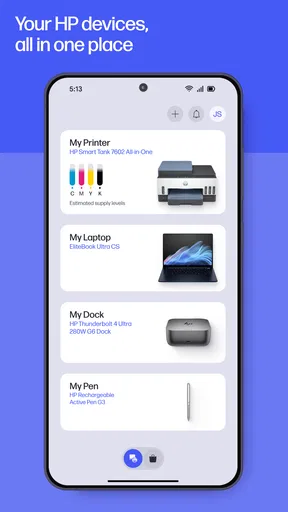
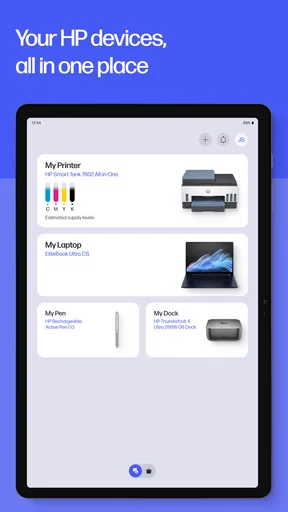
- Ink & Toner Levels: Keep an eye on your printer’s ink and toner levels, so you’re never caught off guard.
Quality and Performance
When it comes to print quality, HP doesn’t disappoint. Whether you're printing a colorful photo or a plain text document, the results are consistently sharp and vibrant. The app also supports a variety of paper sizes and types, so you can customize your print jobs to suit your needs. Plus, the wireless connection is typically stable, though I did experience a hiccup or two when my Wi-Fi was acting up. But hey, nothing’s perfect, right?
“The HP Smart app makes printing as easy as pie, even for tech-challenged folks like myself!”
Usability and Interface
The interface is clean and intuitive. You won’t find yourself tapping around aimlessly, wondering how to find a certain feature. Everything is neatly organized, and you can easily navigate between different functions like printing, scanning, and faxing. Plus, the app's design is sleek and modern, which makes the user experience more enjoyable.
Room for Improvement
While the HP Smart app is packed with features, there’s always room for a little polishing. For instance, the app occasionally takes a bit longer to connect to the printer than I’d like. It’s not a dealbreaker, but something to keep in mind if you're in a real hurry.
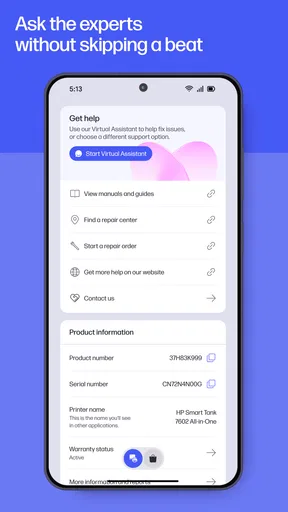
Another thing I noticed was that while setting up the app is straightforward, troubleshooting connectivity issues isn’t as intuitive. A more detailed help section within the app could be beneficial, especially for those who might struggle with tech.
Final Thoughts
In a world where efficiency is king, the HP Smart app provides a reliable and convenient solution for all your printing needs. From its easy setup to its robust feature set, this app is a must-have for anyone with an HP printer. Sure, it has its minor quirks, but the benefits far outweigh any downsides. So, whether you're printing work documents or family photos, the HP Smart app has got you covered.
If you're intrigued and want to give it a try, you can download the app on both the Google Play Store and the App Store. Happy printing!
Privacy and Permissions
See what permissions an app requests and how it handles your data.
- Location
- approximate location (network-based), precise location (GPS and network-based)
- Phone
- read phone status and identity
- Photos/Media/Files
- read the contents of your USB storage, modify or delete the contents of your USB storage
- Storage
- read the contents of your USB storage, modify or delete the contents of your USB storage
- Camera
- take pictures and videos
- Wi-Fi connection information
- view Wi-Fi connections
- Device ID & call information
- read phone status and identity
- Other
- view network connections, create accounts and set passwords, pair with Bluetooth devices, access Bluetooth settings, change network connectivity, allow Wi-Fi Multicast reception, connect and disconnect from Wi-Fi, full network access, run at startup, reorder running apps, prevent device from sleeping
Verdict
Strengths of HP
- User-friendly interface enhances usability.
- Extensive library of customization options.
- Seamless integration with other devices.
- Regular updates ensure new features.
- Efficient customer support available.
Limitations of HP
- In-app ads can be intrusive.
- Some features require a subscription.
- Occasional performance lags reported.
- Limited offline functionality.
- High battery usage during operation.
Other Releases by HP Inc.
View All
HP Print Service Plugin
Productivity4.1

Samsung Print Service Plugin
Productivity3.7
Similar Picks in This Category
View All
Google Calendar
Google LLC4.6

Google Drive
Google LLC4.3

Google Assistant
Google LLC3.9

Microsoft OneDrive
Microsoft Corporation4.6

Samsung Calendar
Samsung Electronics Co., Ltd.4.1

Microsoft OneNote: Save Notes
Microsoft Corporation4.6
Frequently Asked Questions
What features does the HP app offer?
The HP app provides a range of features, including mobile printing, scanning directly from your phone, and managing printer settings. It also supports cloud storage integration, allowing you to print documents from services like Google Drive or Dropbox. Additionally, the app provides access to printer diagnostics and troubleshooting tools.
Is the HP app compatible with all printers?
The HP app is primarily designed for use with HP printers. However, compatibility may vary based on the specific model and the app version. It's advisable to check the app's support page or your printer's manual to ensure compatibility before downloading.
How secure is printing through the HP app?
Security is a priority for the HP app, featuring encrypted connections to ensure your data remains safe during transmission. The app also supports secure printing features, such as pin-protected printing, so only authorized users can access certain documents.
Can I use the HP app without an internet connection?
While some features of the HP app require an internet connection, such as cloud printing and firmware updates, basic tasks like printing and scanning can be performed via a local Wi-Fi connection between your device and the printer, even without internet access.
Are there any subscription fees for using the HP app?
The HP app itself is free to download and use. However, some advanced features or services, such as HP Instant Ink or cloud storage options, might require a subscription or incur additional fees. It’s recommended to review each feature’s details within the app to understand any potential costs.
